Revenue & Sales Operations
Capture leads, evaluate opportunities, manage deals, and monitor revenue targets and pipeline performance.
Understand your connected agency management and workflow automation platform.
Learn how Creative Ecom Builder™ connects lead acquisition, sales pipelines, revenue intelligence, contracts, client onboarding, project delivery, communication, and business operations in one connected workspace.
Explore how each module works, how information moves between workflows, and how your team can manage the journey from a new lead to completed client delivery.
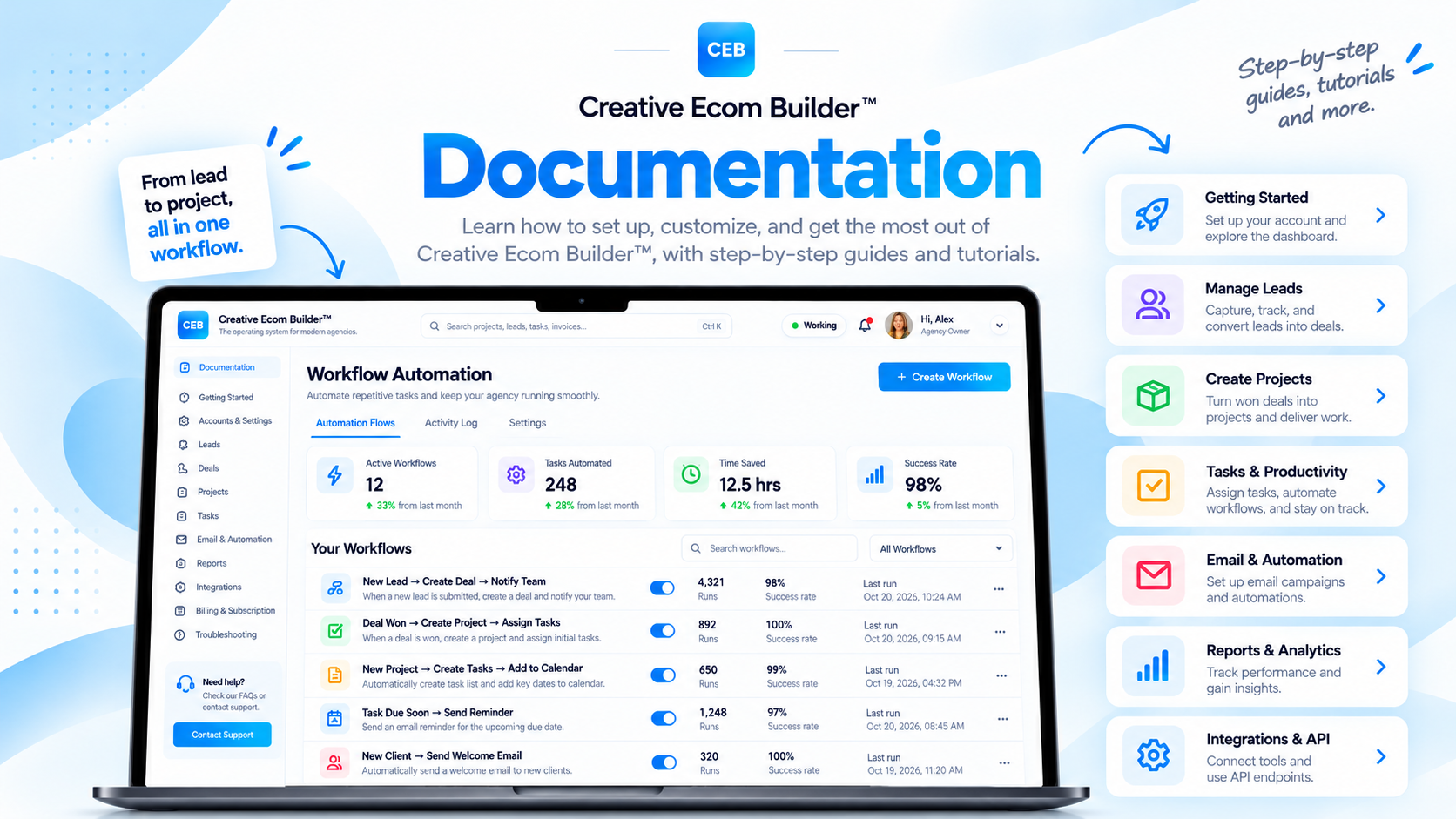
A connected operating environment for managing agency sales, clients, projects, communication, and operations.
Track leads, deals, pipeline value, and revenue performance.
Connect contracts, onboarding, communication, and client workspaces.
Organize projects, tasks, Kanban boards, and calendars.
Bring email, activity history, workforce, and administration together.
Creative Ecom Builder™ is designed to help agencies, freelancers, and service-based businesses manage the operational journey behind their work. Instead of treating sales, client management, projects, and administration as disconnected activities, the platform connects relevant records and workflows across the workspace.
Understand the connected modules that support your business operations, from lead acquisition and revenue management to client delivery and team coordination.
Creative Ecom Builder™ is an integrated agency management software and business operations platform. It brings together customer relationship management, sales pipeline tracking, project management, client onboarding, financial administration, email communication, and workforce operations.
The platform is organized around connected business records. Leads can progress into qualified opportunities, qualified leads can create Contact and Deal records, and a Deal marked as Won can initiate project creation. From there, project and client workflows help organize the work required to deliver the service.
Each module has a specific role. The value comes from how relevant information moves between them, reducing the need to repeatedly recreate the same client or project information in separate tools.
Capture leads, evaluate opportunities, manage deals, and monitor revenue targets and pipeline performance.
Coordinate contracts, client onboarding, client workspaces, project records, and ongoing delivery activities.
Manage invoices, estimates, email communication, activity history, employee operations, and workspace visibility.
The dashboard gives you an operational view of important business activity without requiring you to open every module individually.
Review incoming leads, qualification activity, active opportunities, and sales pipeline progress.
Monitor active projects, assigned tasks, upcoming deadlines, and work that needs attention.
Review revenue summaries, pipeline value, targets, and other available performance indicators.
Keep important dates, task deadlines, and scheduled activities visible in the relevant calendar views.
Review operational activity, overdue work, and workspace signals that may need your attention.
Where enabled by your plan, access employee activity, schedules, assignments, and time records.
Bring prospects into your workspace, organize lead information, and move qualified opportunities into your sales process.
Lead management is the starting point of the revenue workflow. Leads can be added manually, imported through supported spreadsheet workflows, or submitted through connected website forms and API integrations.
When a lead enters the platform, the system can apply its lead-scoring process to help you assess and prioritize incoming opportunities. You can review the lead information and decide when it is ready to be qualified.
Add a lead manually, import supported data, or receive information through a connected form or API.
Use the available lead-scoring information to help evaluate and prioritize the opportunity.
Review the prospect and mark the lead as qualified when it is ready to progress.
Qualification triggers the corresponding Contact and Deal record creation in the connected workflow.
Track sales opportunities through your pipeline and use revenue intelligence to understand the state of your business.
The Deals pipeline organizes opportunities through the sales process. You can manage deal progress using stages such as Prospecting, Qualified, Proposal, Won, and Lost. This gives you a structured view of opportunities and their current status.
Revenue intelligence helps you evaluate more than just closed sales. Depending on the available dashboard metrics, you can review your monthly revenue target, revenue summary, pipeline value, revenue velocity, close rate, pipeline exposure, and comparisons with previous periods.
Understand the value represented by active opportunities in your sales pipeline.
Set a monthly revenue target and review progress against the target.
Review available indicators that help show how revenue opportunities are progressing.
Monitor the proportion of opportunities that reach a successful outcome.
Review the value and status of open opportunities that have not yet been won.
Compare available revenue performance indicators across reporting periods.
Coordinate the transition from a successful sale into a structured client relationship and delivery workspace.
Client onboarding connects sales information with the steps required to begin service delivery. Once a Deal is marked as Won and its Project is created, you can continue with the relevant contract and onboarding activities.
A Deal marked as Won triggers the creation of its corresponding Project.
Create and send a contract using the terms and details you define for the client.
The client completes the signing step. The signed contract supports progression to the next onboarding stage.
Send the branded welcome email to initiate creation of the dedicated client workspace.
When the welcome email is sent, the connected workflow creates a dedicated client workspace. This gives the client a structured place to access relevant project information and collaborate during delivery.
Organize the work behind every client engagement with connected project and task management tools.
Project management brings the delivery side of your business into the same workspace as your sales and client records. Projects provide a central place to organize client work, while tasks help break delivery into manageable actions.
Use the available task views to organize work according to your preferred workflow. Kanban boards help visualize task progress, while calendar views help you keep track of relevant dates and deadlines.
Keep project information organized and connected to the relevant client and sales workflow.
Create and organize work items, assign responsibilities where supported, and set due dates.
View tasks by workflow stage and move work through your delivery process.
See relevant scheduled activities and task deadlines in calendar views.
Keep deadlines visible and identify tasks that need follow-up.
Monitor project progress and understand what work is active or needs attention.
Connect outgoing email and incoming mailbox activity with your day-to-day business operations.
Configure an SMTP mail service to send supported platform emails using your business email identity and domain settings.
Use the email marketing tools for supported outreach, newsletters, and campaign communication.
Send supported welcome and client communication emails using your configured email setup.
Connect a supported mailbox through IMAP to synchronize incoming messages into the platform inbox.
Review synchronized mailbox messages within the available inbox interface.
Keep relevant email activity connected to your wider client and business processes.
Extend your lead acquisition workflow by connecting supported forms, websites, and external tools to your workspace.
Creative Ecom Builder™ includes a public API workflow for submitting lead information to the platform. Each workspace uses its own API credentials, allowing users to connect their own supported lead sources to their own business dashboard.
For example, a website form or another supported integration can submit lead information through the API. The lead can then enter the platform’s lead management process and progress through the relevant qualification and sales workflows.
Users can also create a custom GPT with their own instructions and brand voice, then configure its API action to submit lead information to their workspace. This is a user-configured integration rather than a prebuilt GPT supplied as a standard platform feature.
Use the API credentials associated with your own workspace when configuring a supported integration.
Connect supported website forms and landing pages to submit lead information.
Configure your own GPT and API action to send lead details into your workspace.
Understand what is happening across your workspace with activity records and operational visibility.
Activity Intelligence provides visibility into recorded actions and operational events across supported areas of the platform. System logs and action history help you review activity and understand how work is progressing.
Workspace health indicators can help highlight operational conditions such as overdue tasks, workload visibility, execution velocity, activity volume, and pipeline health, where those indicators are available in your workspace.
Review recorded activity and relevant action history within the platform.
Use available activity information to understand changes and progress across your workspace.
Access downloadable activity history where supported by the relevant module.
Identify overdue work and operational items that may require follow-up.
Review available workload and execution activity across the workspace.
Use sales and activity indicators to understand the condition of your active pipeline.
Coordinate employee activity and workforce administration through the available team management tools.
For eligible plans, the workforce tools support employee access and operational coordination. Depending on the features included in your subscription, these tools may include clock-in and clock-out activity, timesheets, schedules, task assignments, and time-off or leave requests.
These capabilities help businesses coordinate internal work alongside client projects and delivery operations. Workforce features are plan-dependent and may not be available in every subscription.
Provide team members with access according to your workspace permissions and plan.
Record supported employee time activity through the workforce tools.
Review recorded work time through the available timesheet functionality.
Coordinate employee schedules and assigned work where available.
Manage supported leave and time-off request workflows.
Review available employee activity and team operations information.
Support the financial administration of client work with tools for invoices, estimates, and project cost calculations.
Create and manage supported invoices as part of your client and project administration workflow.
Make relevant invoice information available through the connected client workspace and portal workflow.
Prepare estimates to organize proposed work and communicate expected project costs.
Use the available calculator tools to work through project cost estimates.
Keep relevant contract information connected to the client and project workflow.
Keep supported financial documents organized alongside the work they relate to.
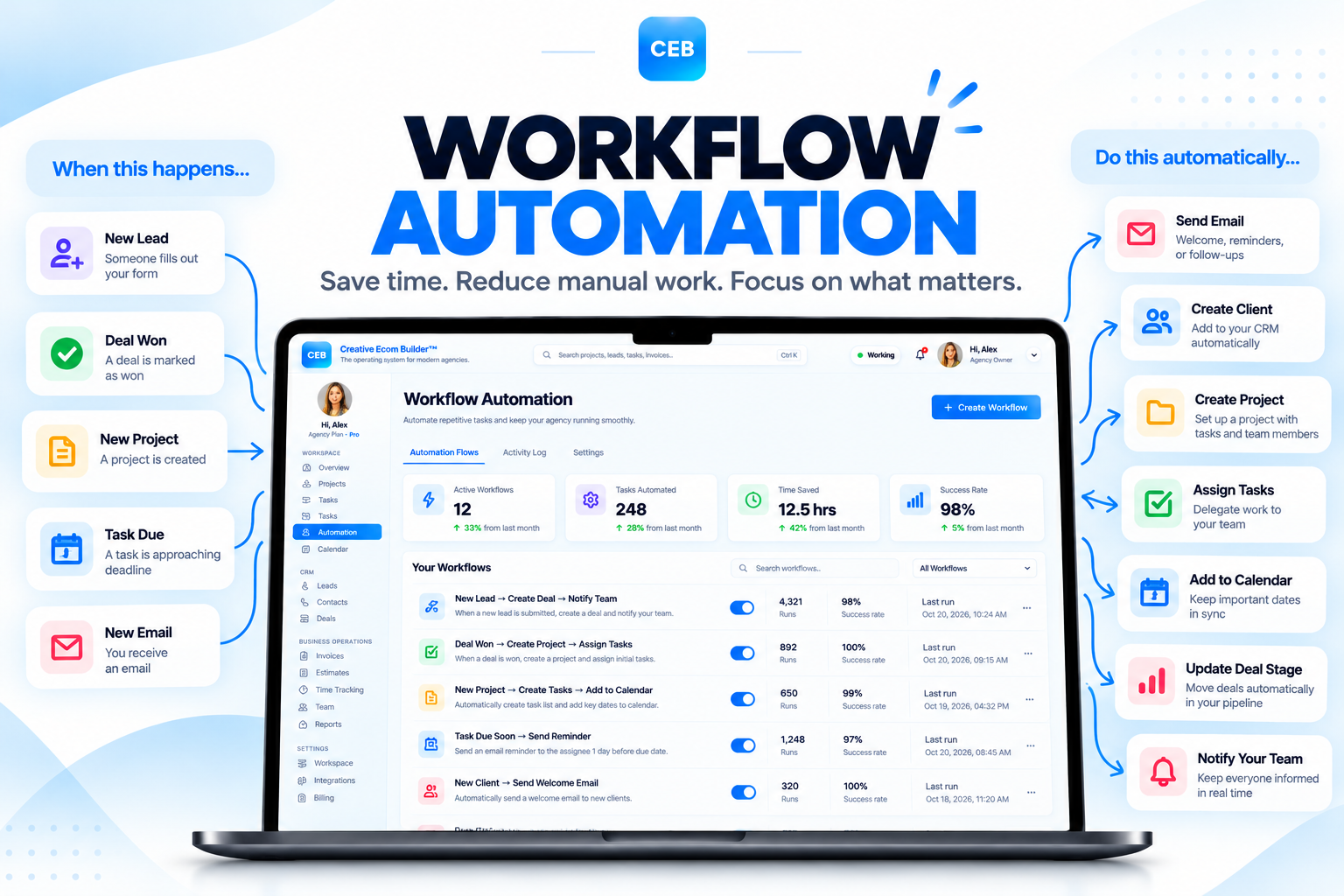
Creative Ecom Builder™ connects predefined actions across modules so information can progress through your business without repeatedly recreating records.
Workflow automation in Creative Ecom Builder™ focuses on the connections built into the platform. When a defined trigger occurs, the corresponding supported action can take place in another part of the workspace.
These predefined workflows connect lead qualification, sales records, project creation, client onboarding, and project execution. They are designed around the platform’s own modules rather than requiring a separate automation builder for these built-in connections.
The corresponding Contact and Deal records are created.
The corresponding Project is created in the workspace.
The connected client workspace creation workflow is triggered.
Projects and tasks can be managed through the available delivery views.
Subscription plans may differ in included modules, limits, and workforce capabilities. Review the current plan information before selecting or upgrading your workspace.
Creative Ecom Builder™ is designed for different business sizes and operating needs, from independent service providers to growing agencies. Available features and workspace limits depend on the selected subscription.
For the latest information about subscription pricing, included features, limits, trials, and billing, refer to the official pricing page. Your account dashboard is the best place to review the plan and access currently assigned to your workspace.
Quick answers to common questions about the platform, connected workflows, integrations, and client access.
Creative Ecom Builder™ is a connected agency management and business operations platform that brings together lead management, sales, revenue intelligence, client onboarding, project management, communication, and administration.
No. CRM and sales pipeline management are part of a broader operating system that also connects client workflows, projects, tasks, invoices, email, activity intelligence, and eligible workforce tools.
Yes. When you mark a lead as qualified, the connected workflow creates the corresponding Contact and Deal records.
The connected workflow creates the corresponding Project so the opportunity can move into the project delivery process.
After the relevant onboarding steps, sending the branded welcome email triggers creation of the dedicated client workspace.
The client portal uses a token-based access link. Clients can access the shared portal through the link provided to them without creating a separate platform account.
No. Some workflow actions are triggered by platform events, while client-facing actions such as sending a contract or welcome email remain under your control.
You can use the public API workflow to connect supported lead sources. You can also configure your own custom GPT and API action to submit leads using your workspace credentials.
The platform supports SMTP configuration for outgoing email and IMAP configuration for incoming mailbox synchronization, subject to compatible email provider settings.
Workforce features are plan-dependent. Review the current pricing page and your account’s plan details to confirm availability.
The predefined connections between supported Creative Ecom Builder™ modules are built into the platform. External tools may still be useful for integrations beyond those built-in workflows.
Visit the official pricing page for current subscription details, plan limits, and feature availability.
Explore Creative Ecom Builder™ and bring your lead management, sales pipeline, client operations, and project delivery into one connected system.
Creative Ecom Builder™ — Connected agency management, workflow automation, and business operations.